


Digital Twin-Visualization Dashboard
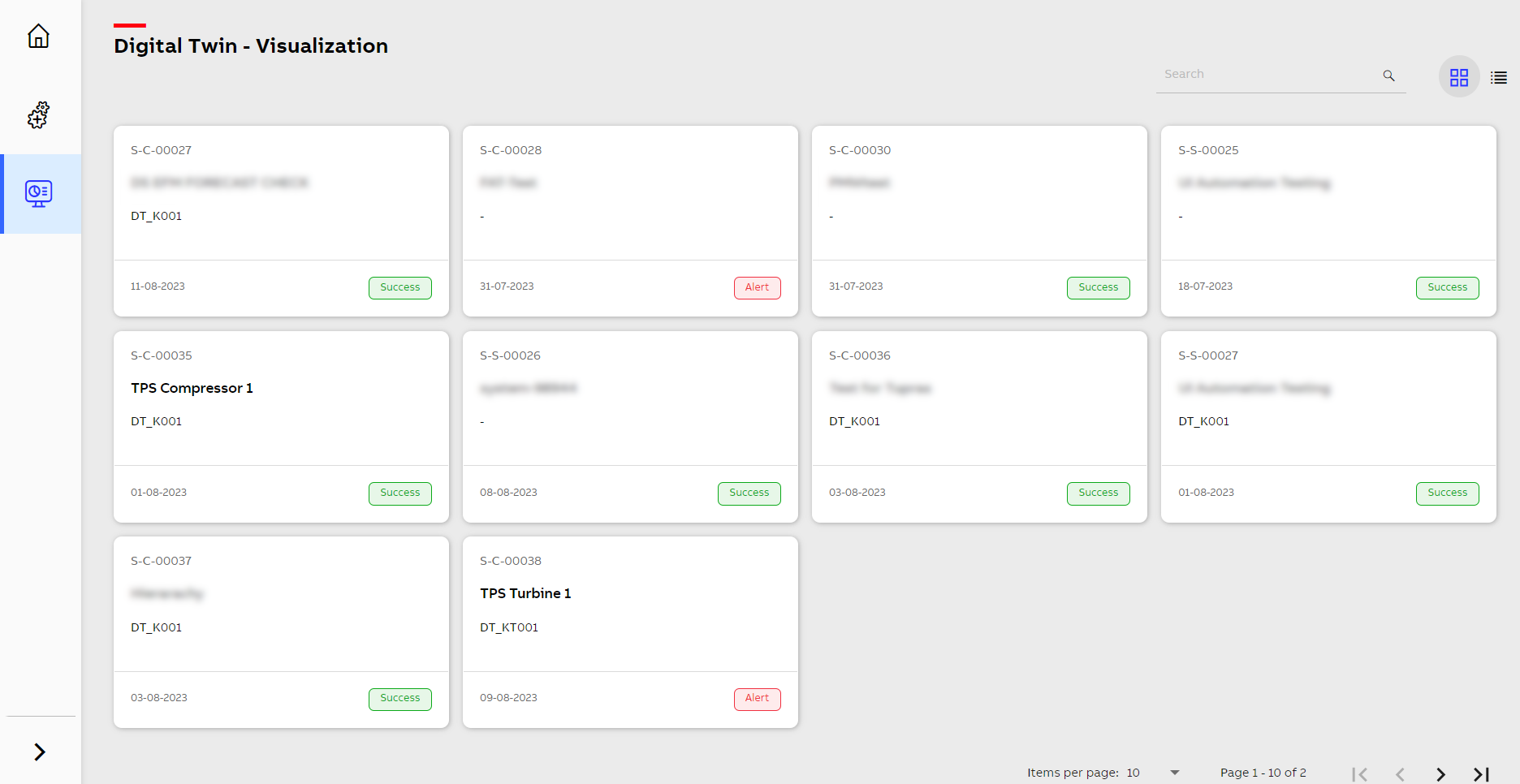
This presents a comprehensive overview of the Digital Twin Visualization dashboard. The dashboard is designed to display all successfully configured systems in a card and list view. The following are displayed:
-
The Search feature allows you to quickly find specific systems or assets by entering keywords or identifiers. To use the search functionality, simply input the relevant information in the search bar. The dashboard then filters and displays the matching digital twins.
-
The Card View presents digital twins in a visually appealing card format. Each card provides essential information about the system, such as system code, system name, assigned model, last updated date, and status. By clicking on any system, you can access the system details page, where you can select and visualize parameters, failure modes, KPIs, or an integrated schematic.
-
The List View presents digital twins in a tabular format, providing a comprehensive overview of all systems and assets. Each row in the list represents an individual digital twin, and columns display relevant information about the system, such as system code, system name, assigned model, last updated date, and status. By clicking on any system, you can access the system details page, where you can select and visualize parameters, failure modes, KPIs, or an integrated schematic. You can sort and organize the list to quickly locate specific digital twins.
-
The Items per page option allows you to have a specific amount of items on one page. Use the < or > icon to go to the next or previous page, and use |< or >| to go to the first or last page.
To access Predictive Maintenance Workplace, go to Genix Platform > Digital App Center > My Apps > APM Model Configuration and Deployment > Monitor and Optimize > Digital Twin Visualization.
Digital Twin-Visualization Dashboard